06
Sending a campaign
Send an SMS, MMS or WhatsApp message to the right group of contacts, check the cost before you send and watch it go out step by step.
The campaign flow
- 1New campaign
Name it and choose the recipients by tag.
- 2Sender & timing
Channel, sending number or sender name, now or a set date.
- 3Message
Write it or start from a template; add personal fields, links, coupon, unsubscribe link.
- 4Preview
See the number of messages, the cost, the end time and real samples.
- 5Send
Watch the progress; results and clicks come in on the campaign page.
1 · Set up the campaign
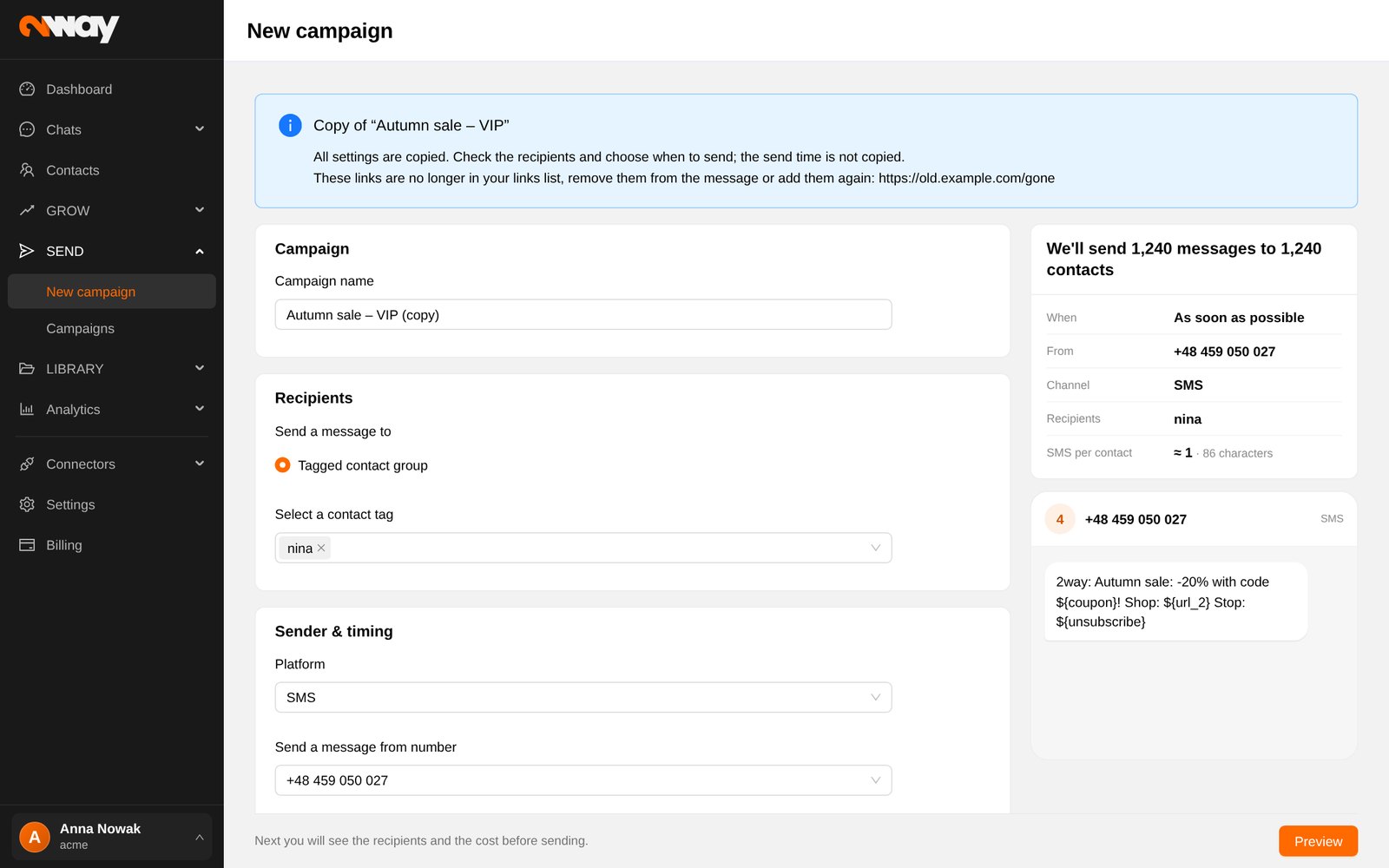
- Campaign name: for your own reference in reports.
- Recipients: a Tagged contact group (one or more tags) or all contacts, if your account allows it. With WhatsApp you can also send only to contacts who signed up via SMS or via WhatsApp.
- Platform: SMS, MMS or WhatsApp, depending on your numbers.
- Send a message from number: a phone number or an approved sender name (the list is searchable).
- Send a message: Asap or on a chosen Date.
Write the message from scratch (New content) or pick a saved one (From template). In the editor you can insert custom fields (e.g. the first name), a shortened link, a video, a coupon from a pool and the unsubscribe link. WhatsApp uses approved message templates: fill each variable with a field, link, video or coupon.
The side panel updates live: “We’ll send N messages to N contacts”, how many SMS parts that is, the sender, channel, recipients, send time and a preview of the message.
2 · Preview and send
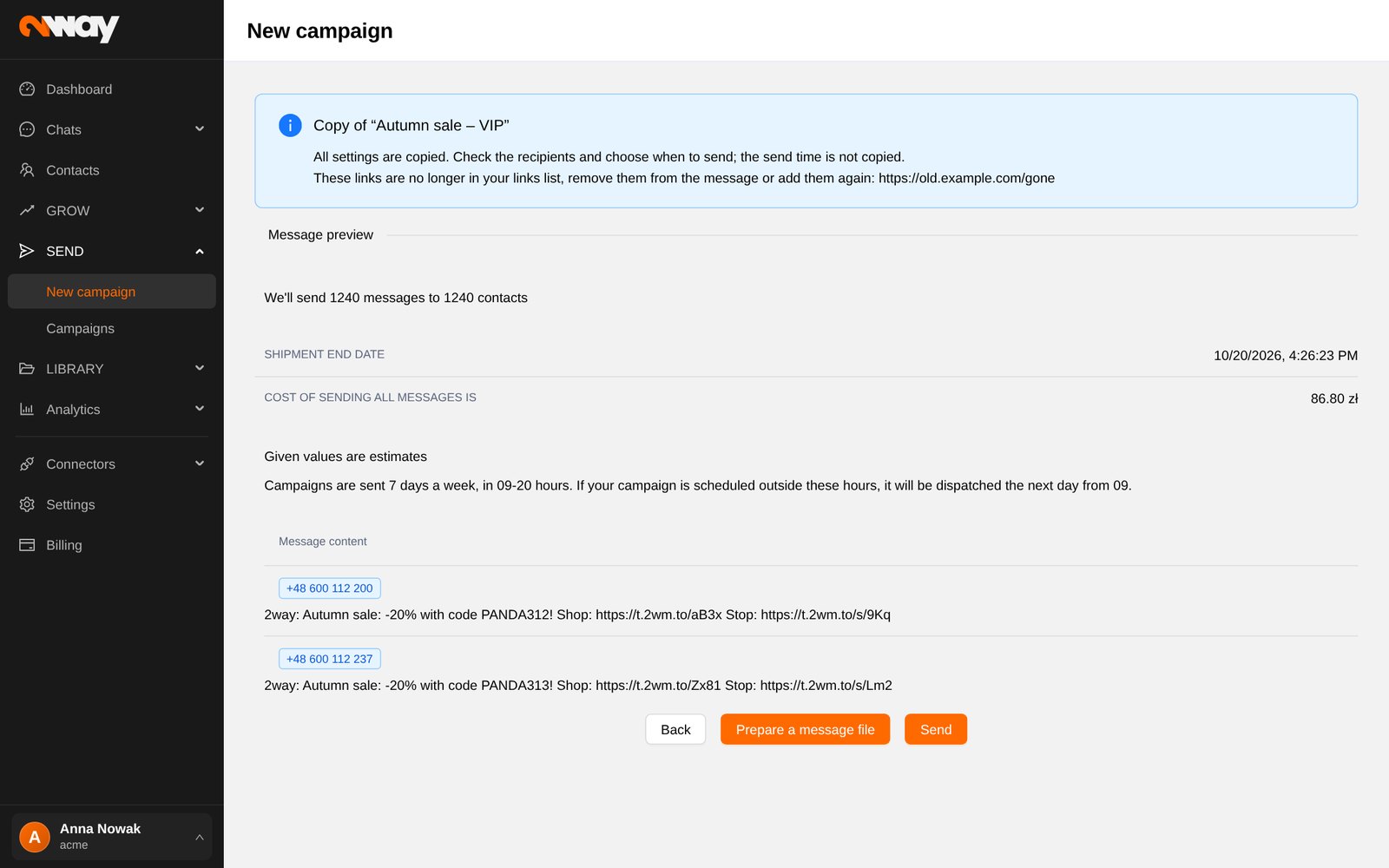
Click Preview to see exactly what will happen before any money is spent: the number of messages and contacts, the estimated end of sending, the cost, whether your balance is sufficient, and real samples of personalised messages with their recipients. Campaigns go out within the sending hours shown (for example 09–20); anything scheduled outside them starts the next morning.
- Send starts the campaign (it is disabled when the balance is too low).
- Prepare a message file (SMS) builds the messages without sending them, as a draft you can review.
- Back returns to the form with everything kept.
3 · Follow the progress

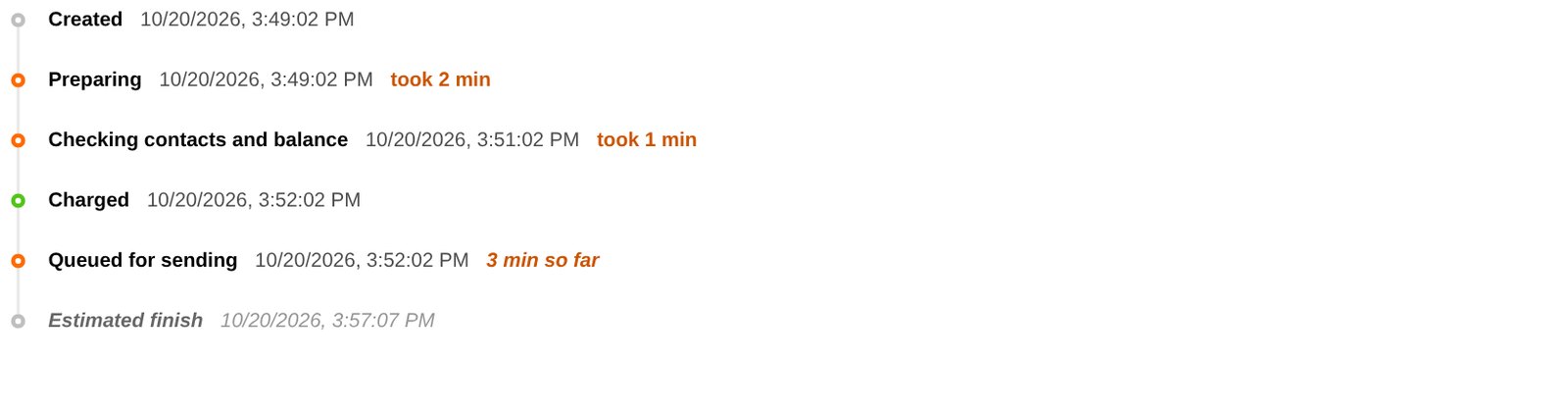
Open the campaign from SEND › Campaigns to see where it is:
- 1Created
- 2Finding recipients
Contacts matching your tags.
- 3Personalising messages
Each message is filled in.
- 4Saving messages
- 5Checking balance
Cost is reserved.
- 6Scheduled
Only for a set date.
- 7Sending
Progress and the expected end at the current pace.
- 8Sent
With the delivered %.
Each running step shows how many messages are done and about how much time is left. If something needs your attention, a clear note says what to do, for example “Not enough balance to send this campaign. Top up and retry it.”
4 · Results
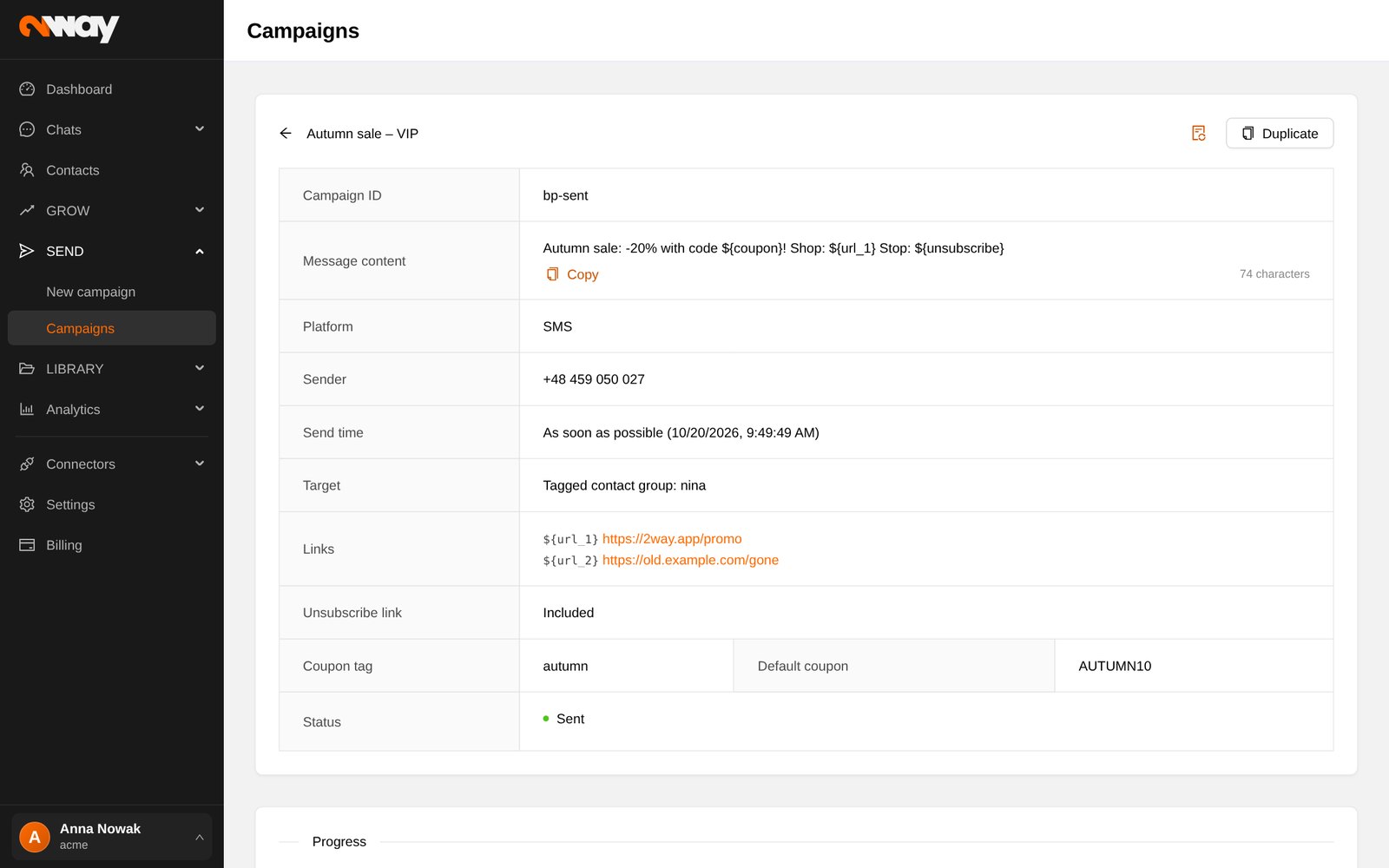
The campaign page shows recipients, sent and delivered messages, revenue (when your shop is connected) and, for every shortened link, how many people opened it. Below you find the settings recap: sender, send time, target, platform, links, coupon and whether the unsubscribe link was included.
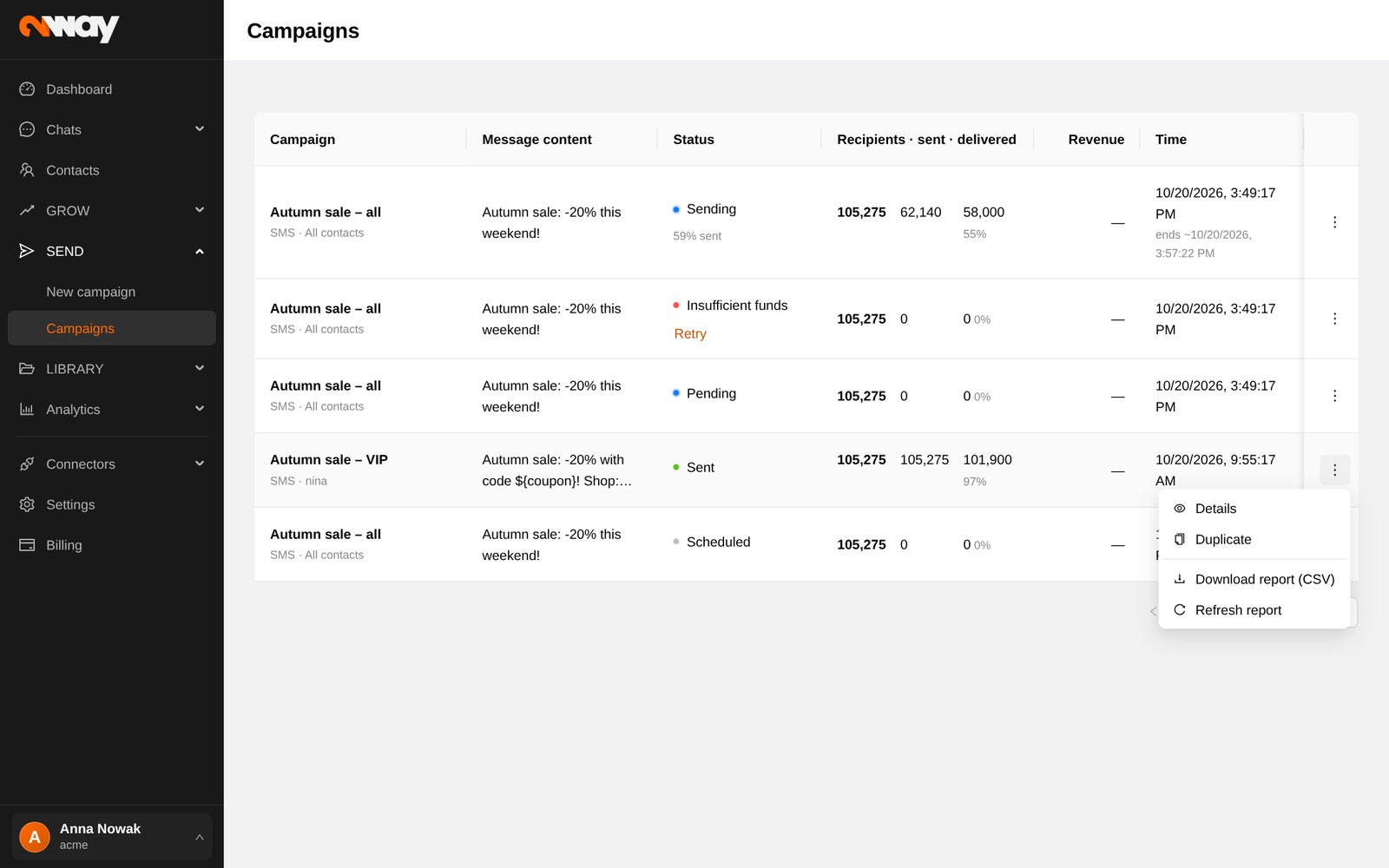
The campaigns list
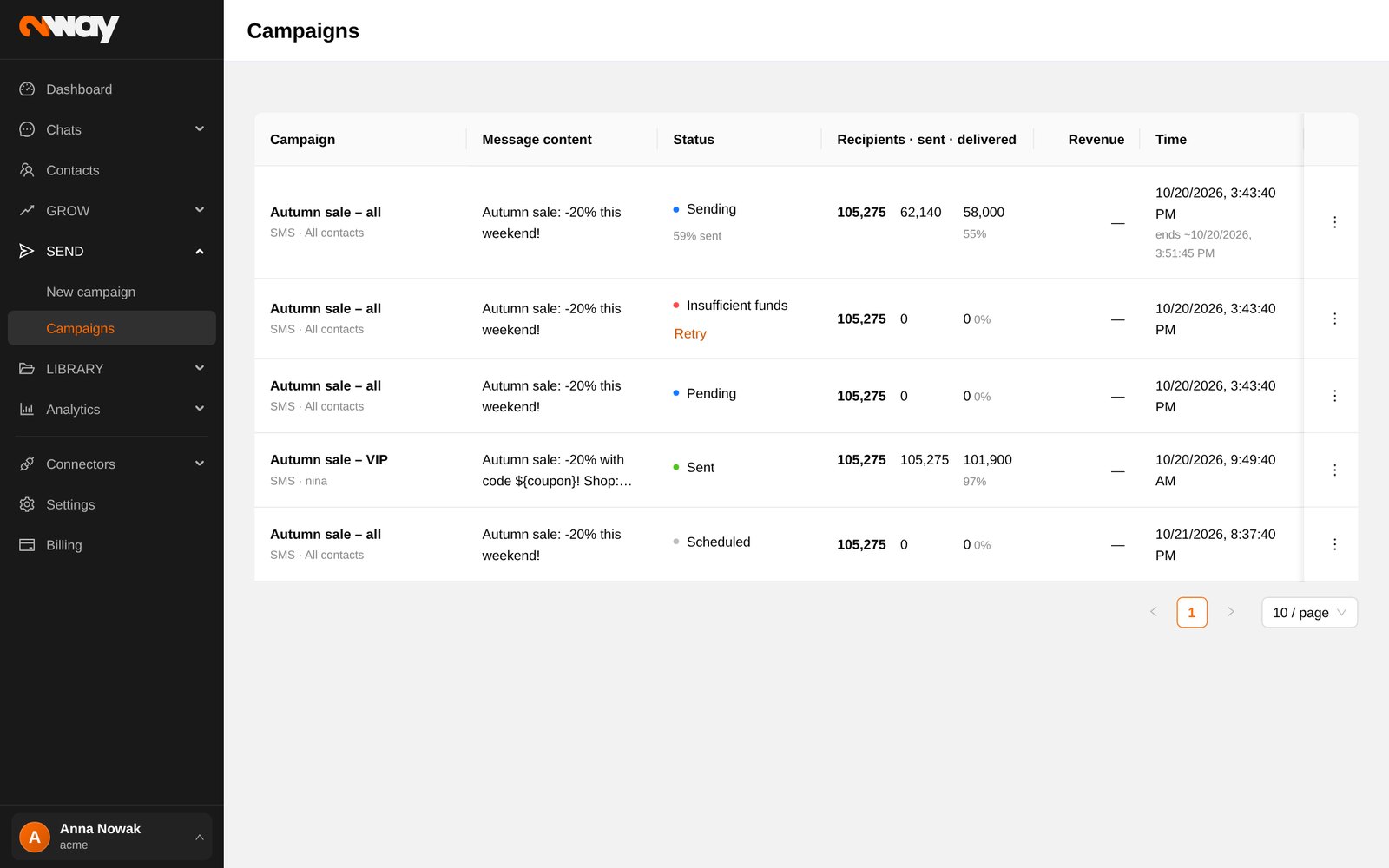
Each row shows the status, recipients · sent · delivered, the time and revenue; running campaigns show their % sent and expected end. Click a row to open the campaign. The ⋯ menu offers Details, Duplicate and Create report (then download it as CSV).