03
In-store sign-ups: QR, NFC and keywords
Your stores, restaurants and printed materials can collect customers too. A sticker or a keyword is enough.
How an offline sign-up works
- 1Scan or text
The customer scans a QR code, taps an NFC sticker or texts a keyword.
- 2Short form
A landing page asks for the phone number and consent.
- 3Verify
Optional one-time code confirms the number.
- 4Reward
Confirmation SMS with a unique discount code.
- 5Know the source
Each sticker or keyword has its own tag, so you see where and when people signed up.
QR codes
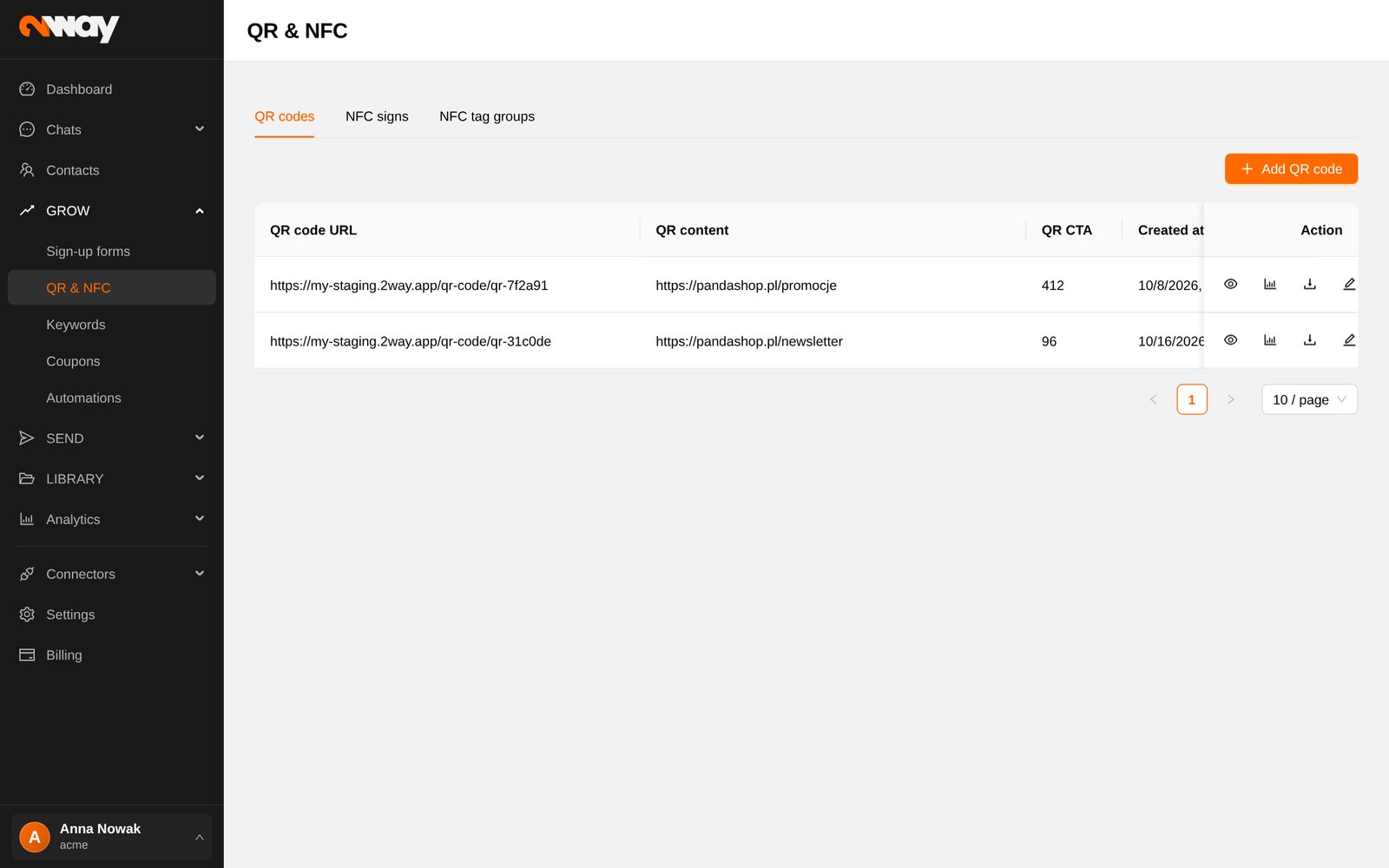
- Click Add QR code.
- Choose the Type: a URL, an SMS (opens the customer’s messages app with your number and text ready to send) or a Landing page.
- In Advanced settings match the code to your brand: colours, dot and corner styles, background and a logo in the centre.
- Save and use Download QR code to get the file for print.
Every scan is counted. Download report gives you the scans with time and device, so you can compare locations or printed materials.
NFC signs and tag groups
NFC signs are stickers or stands with both a QR code and an NFC chip: customers tap them with a phone or scan the code. Each sign points to a landing page and can carry tags from NFC tag groups, e.g. a group City with tags Warsaw, Kraków, or a group Spot with fitting room, checkout. These groups become filters on the Dashboard and in NFC reports, so you can compare stores and spots.
Keywords
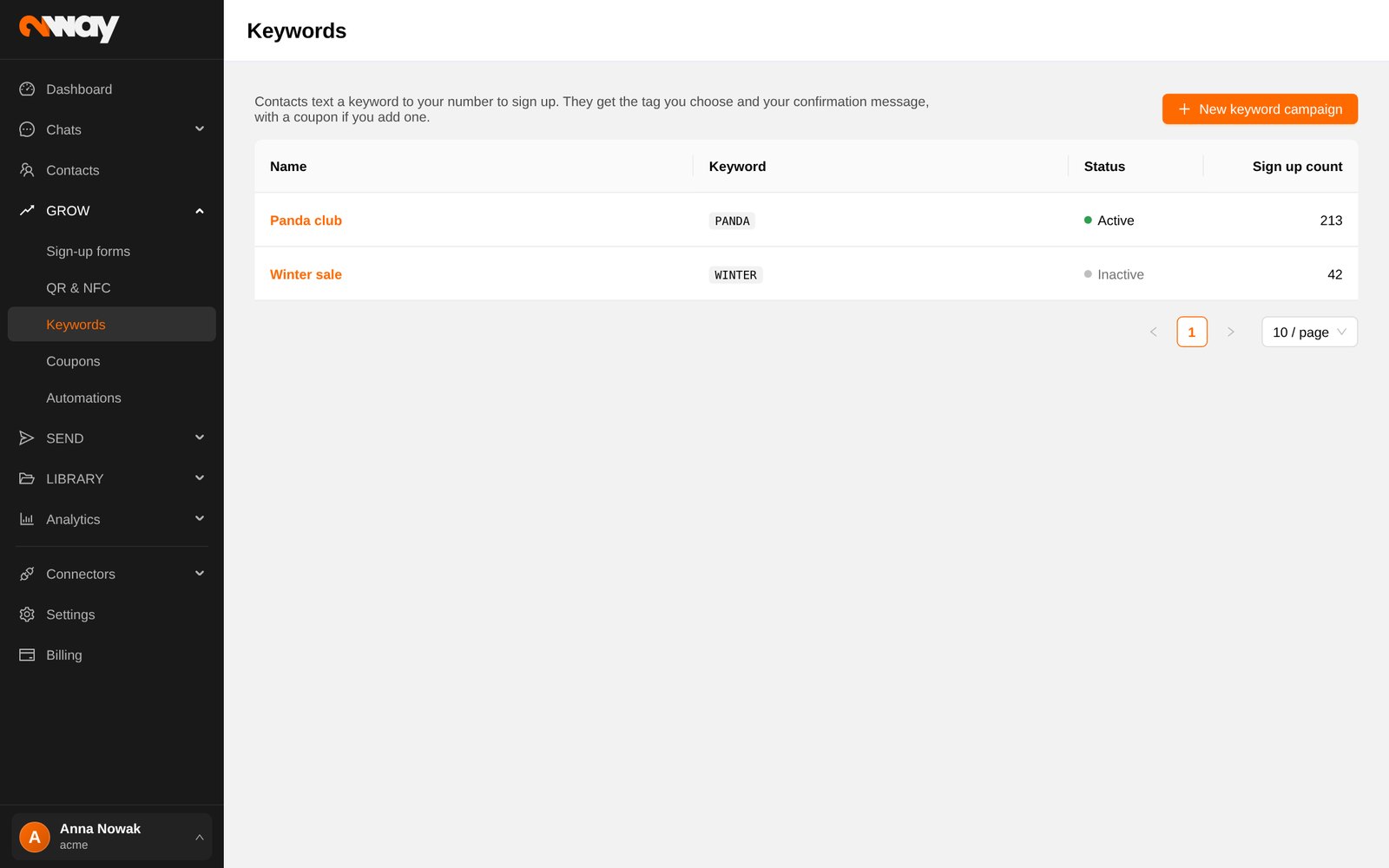
With a keyword customers sign up by texting a word, e.g. PANDA, to your number. Use it on posters, receipts, radio or wherever a link is not practical.
- Click New keyword campaign.
- Sign-up: name, the tag contacts get, the keyword (one word, “STOP” is reserved) and the number customers text.
- Reply after sign-up: the confirmation message, optionally with a coupon and links.
- Repeat sign-ups: decide what happens when someone texts the keyword again.
- Check the phone preview and save. The status shows Active.