05
Contacts
Your own customer base: who signed up, from where, with what consent, and who must not be contacted.
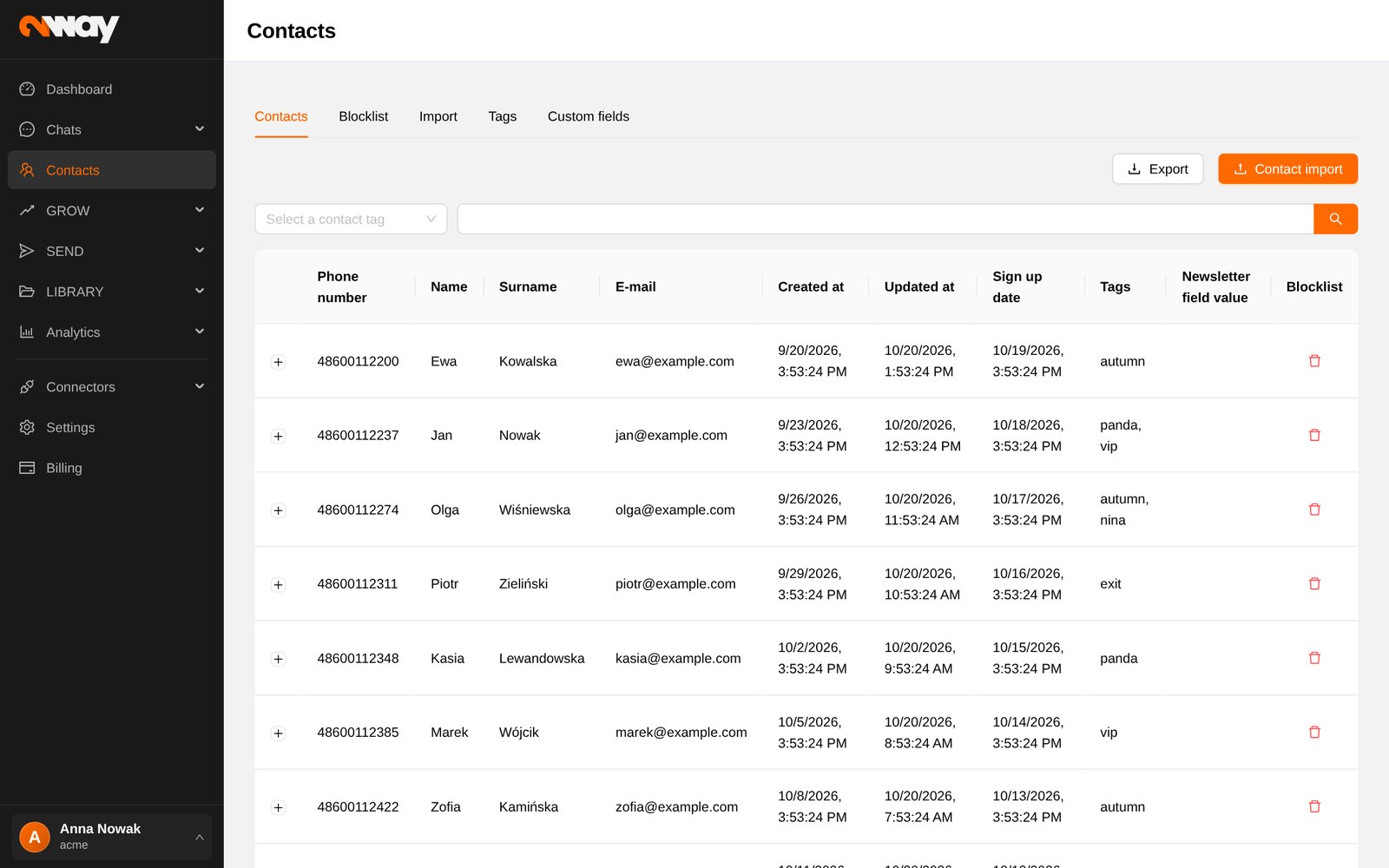
What a contact holds
Each contact is a phone number with its sign-up date, the tags collected along the way (source, store, campaign, answers given in forms) and custom fields such as name, email or city. Expand a row to see all of it. Use the tag filter and the search box to find people, and Export to get the list as a report.
Tabs on the Contacts page
| Tab | Use it to |
|---|---|
| Contacts | Browse, search and filter your base; block a contact. |
| Blocklist | See who must not receive messages and why (STOP reply, unsubscribe link or form, manual block). Block or unblock numbers. |
| Import | See the history of imports with imported, blocked and rejected rows. |
| Tags | Create and remove tags. A tag used by a form cannot be removed. |
| Custom fields | Define extra fields (e.g. city, loyalty number) to use in messages. |
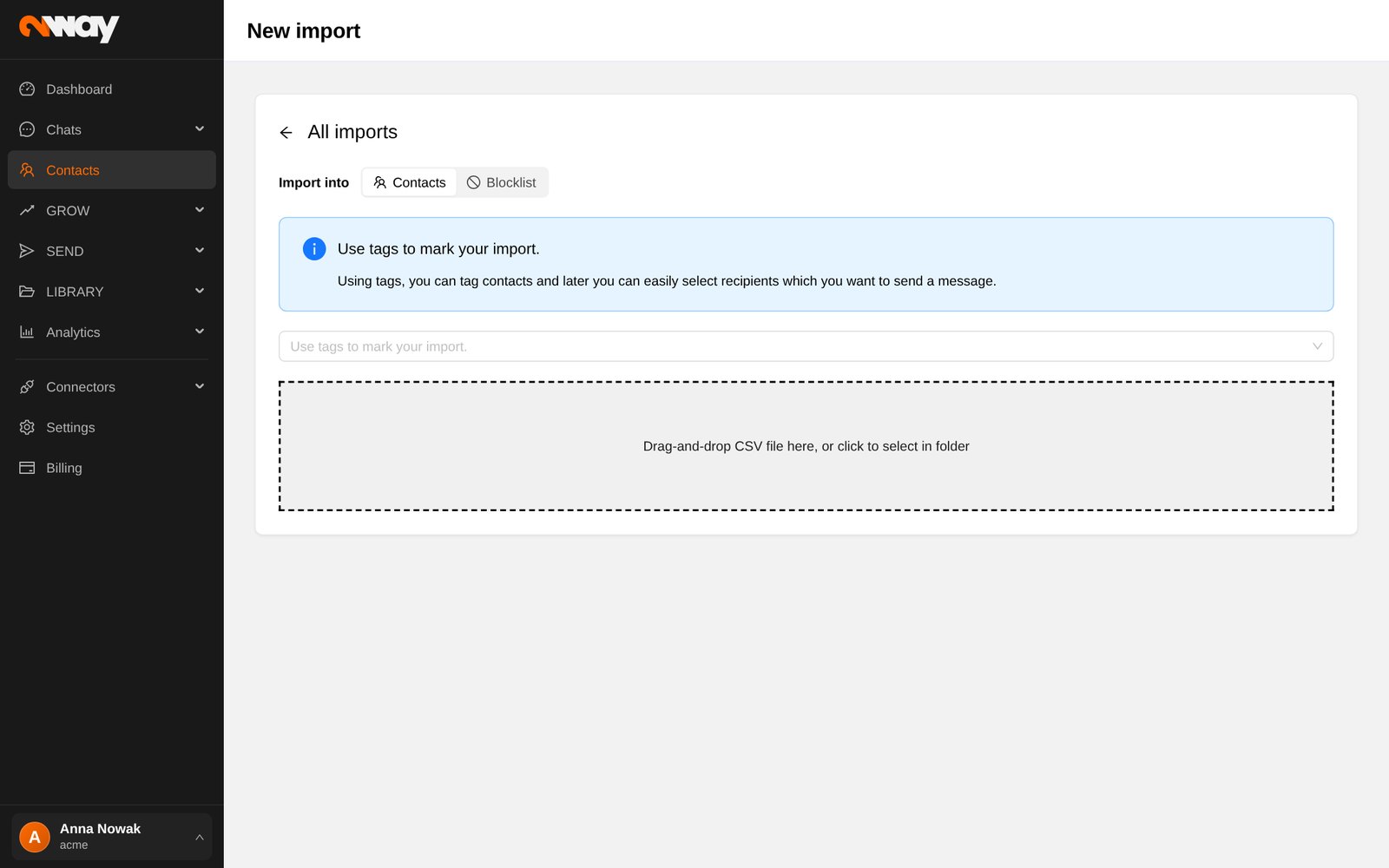
Importing contacts
Bring in customers you already have, for example from a loyalty programme, as long as you have their marketing consent.
- 1Import into
Choose Contacts, or Blocklist to block a list of numbers.
- 2Upload CSV
Drop the file; tick “Data has headers” if the first row holds column names.
- 3Map columns
Point the phone number column (required) and optionally name, surname, email, tags and custom fields.
- 4Tag the import
Add tags; you will use them to pick recipients of campaigns.
- 5Finish
Follow the progress and see rejected rows in the import history.
- Rows are rejected when the number is missing, invalid or not a mobile number; download them from the import history to fix and re-upload.
- Numbers on the blocklist stay blocked even if they appear in an import.