02
Collecting sign-ups with forms
Pop-ups, landing pages and embedded forms turn website visitors into SMS and WhatsApp subscribers. Each one is built in the same four steps.
Which form for which situation
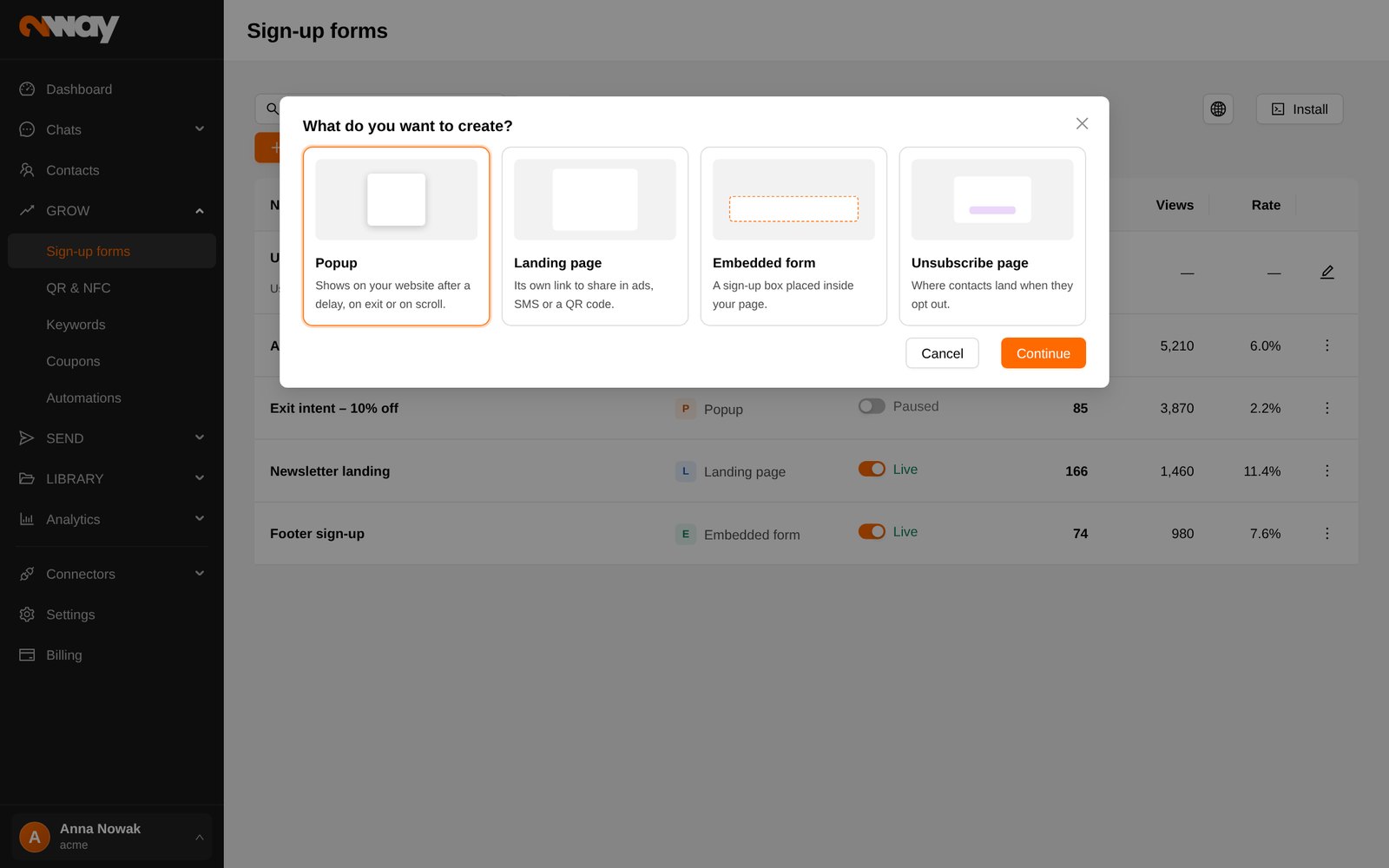
Popup
Appears on your website after a delay, on exit or on scroll. Best for e-commerce: “Get −10% on your first order”.
Landing page
A page with its own link. Share it in ads, social media, an SMS or behind a QR code in a store.
Embedded form
A sign-up box placed inside a page of your website, e.g. in the footer or on a promo page.
Unsubscribe page
Where contacts land when they click the unsubscribe link. One default page is ready for you.
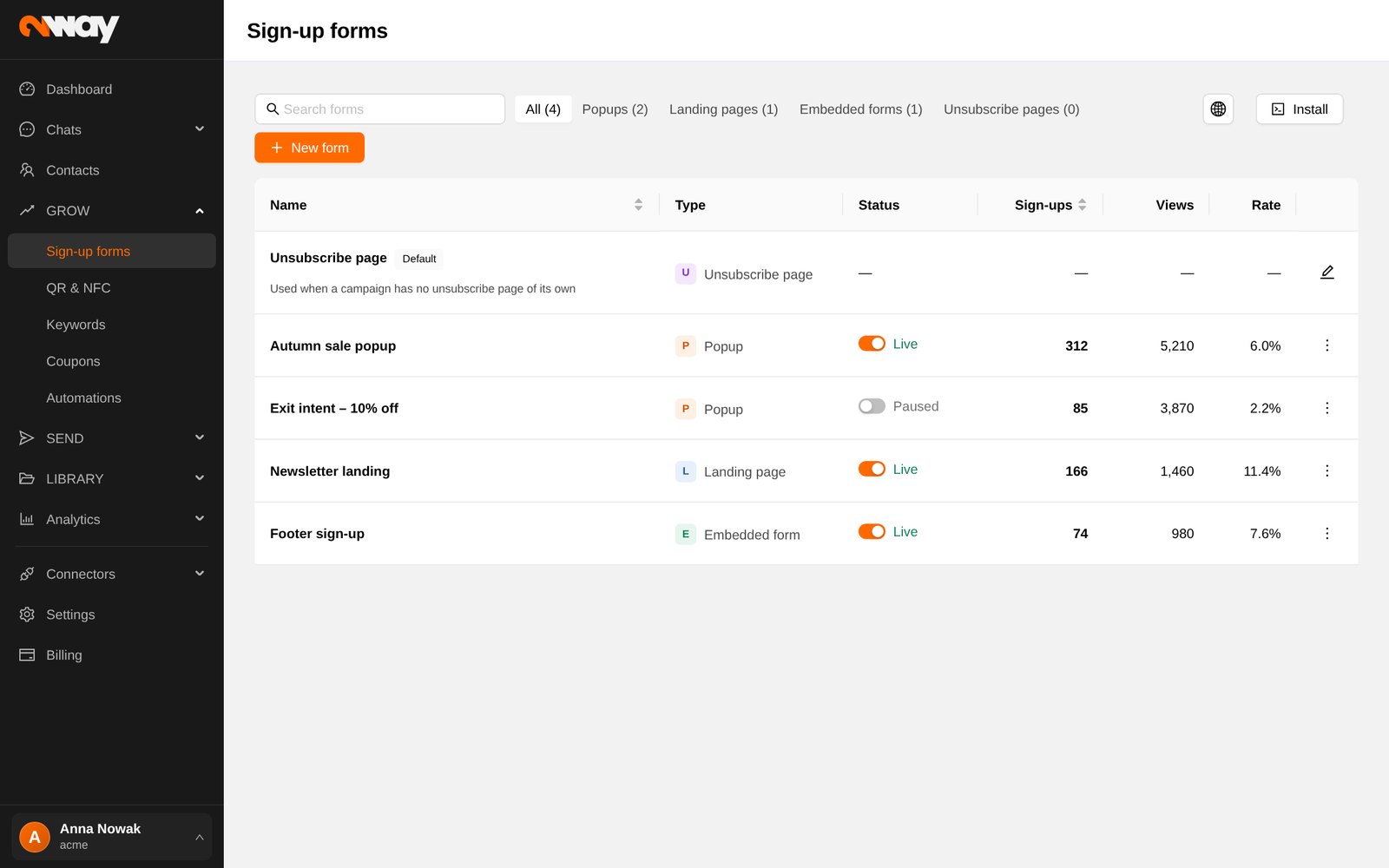
The list shows each form with a Live / Paused switch, the number of sign-ups, views and the conversion rate, so you can see at a glance which offer works. Use the ⋯ menu to Edit or Duplicate a form; duplicating is the quickest way to run a variant for another season or market.
Creating a form
- 1New form
Choose the type: Popup, Landing page, Embedded form or Unsubscribe page.
- 21 · Content
Texts, extra fields and the consent wording.
- 32 · Design
Layout, colours, logo, image, corners, teaser.
- 43 · Display rules
Where, on which devices, when and how often it shows.
- 54 · Sign-up settings
Sending number, tag, confirmation SMS, coupon, double opt-in.
- 6Save & go live
Switch it to Live; changes are published when you save.
Step 1 · Content
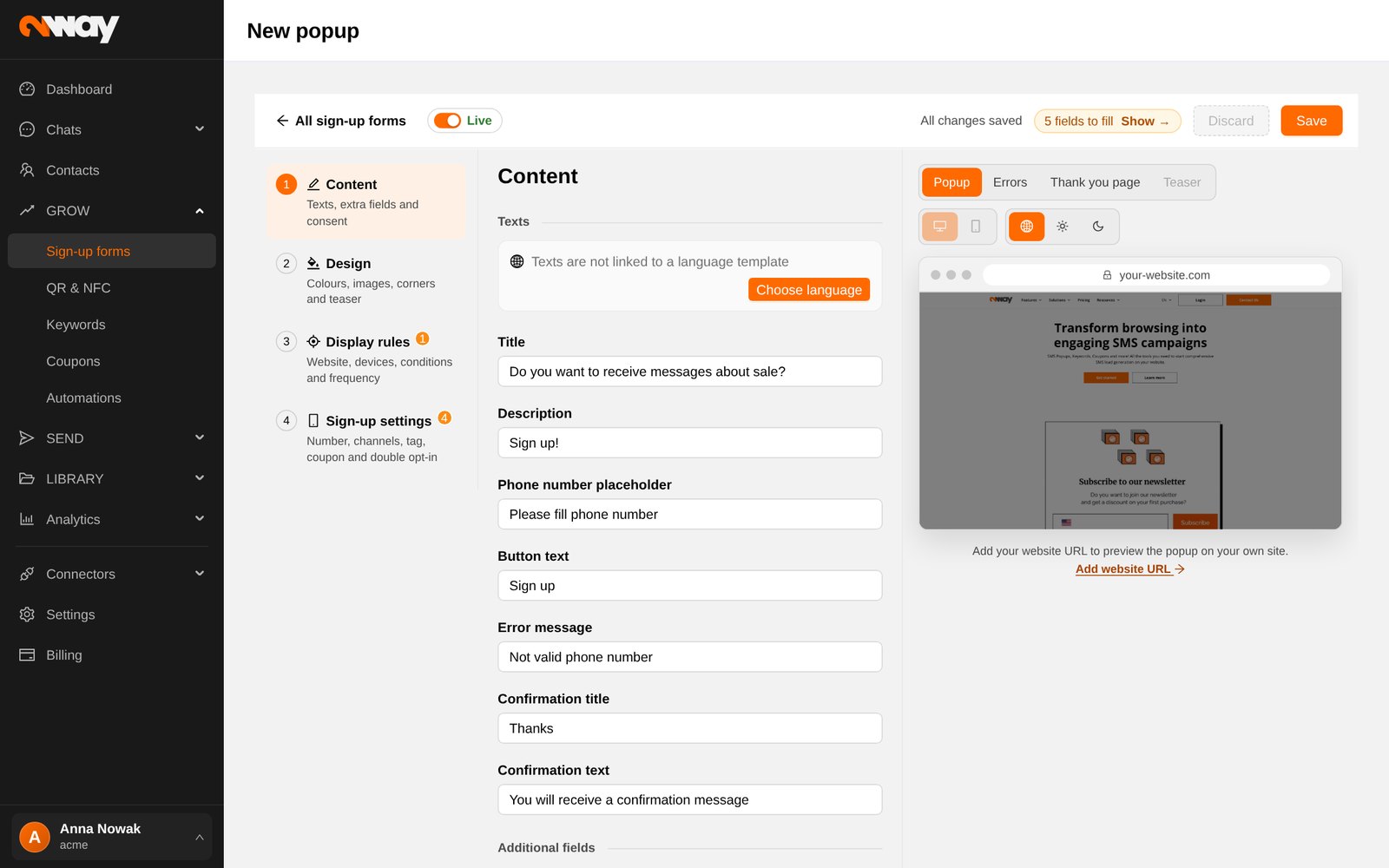
Start by picking the language of the form; 2way fills in proven texts you can adjust (title, description, phone placeholder, button, confirmation). Add Additional fields if you need more than the phone number, such as email, zip code, year of birth or a choice list, and tag contacts differently depending on their answer. Finish with the Disclaimer: the consent text, shown as plain text or as a checkbox.
Step 2 · Design
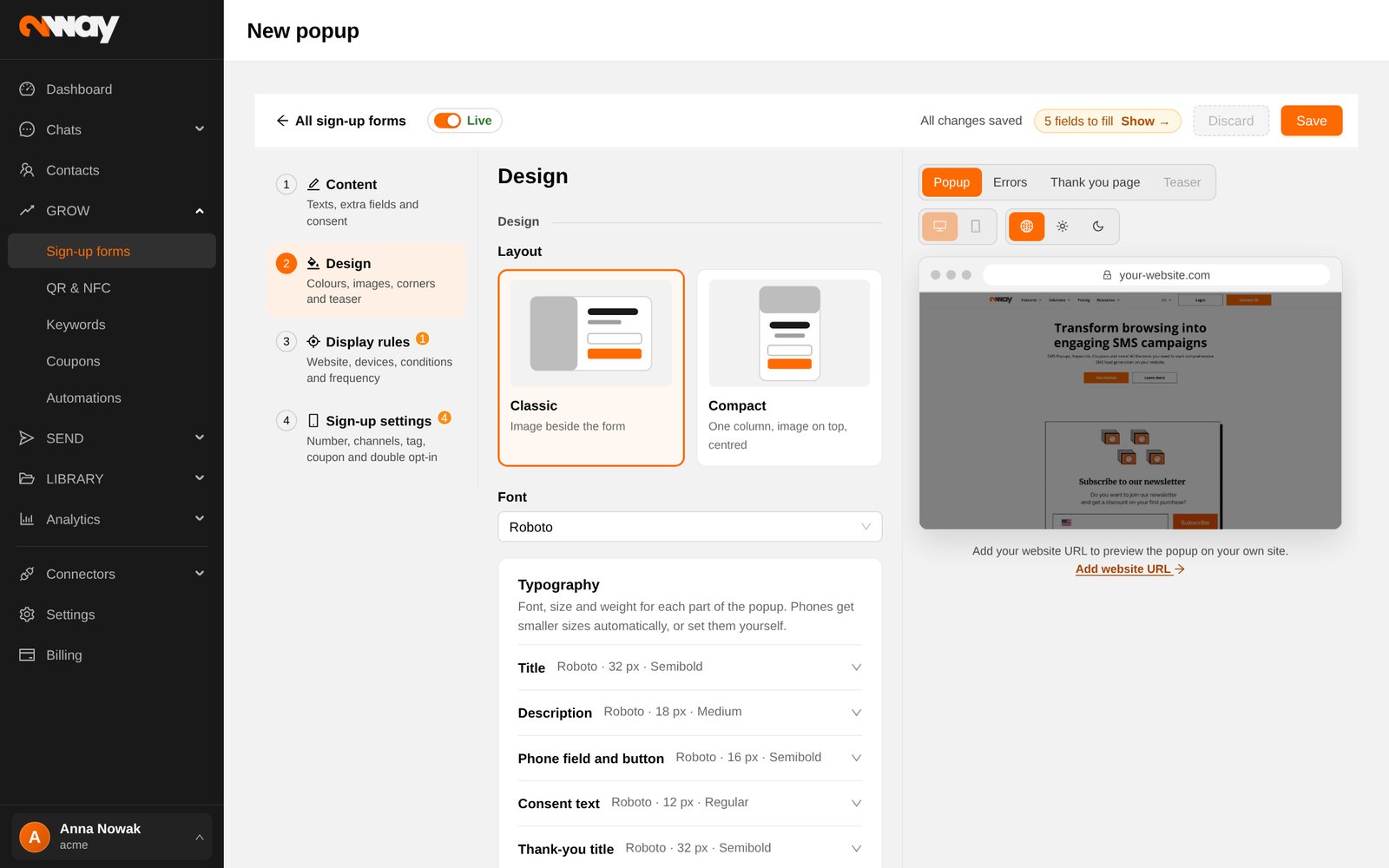
Choose the Classic layout (image next to the form) or Compact (one column, better on phones). Set your font, colours, logo and image, and round the corners to match your site. A Teaser is a small tab in the corner of the page that opens the pop-up on click, so visitors who closed it can come back. 2way keeps Design versions: every saved look is measured, so you can see which one has the best conversion.
Step 3 · Display rules
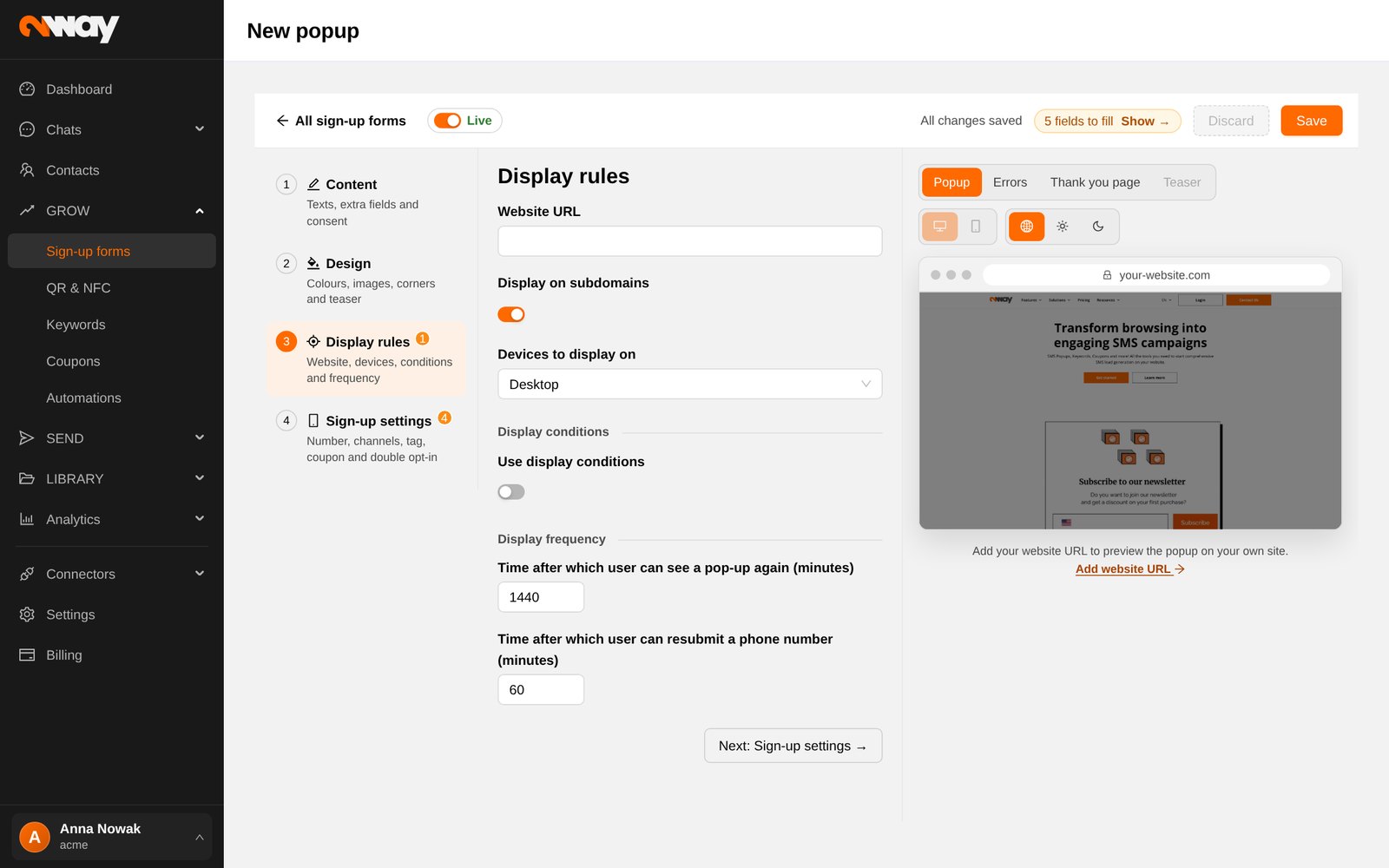
- Website URL: the site the pop-up runs on (optionally its subdomains).
- Devices: all, desktop only or mobile only.
- Display conditions: time on page or website, exit intent, scroll position, specific page addresses, referrer, browser language, country and more. Combine several conditions.
- Display frequency: how many minutes before the same visitor sees the pop-up again, and before they can submit their number again.
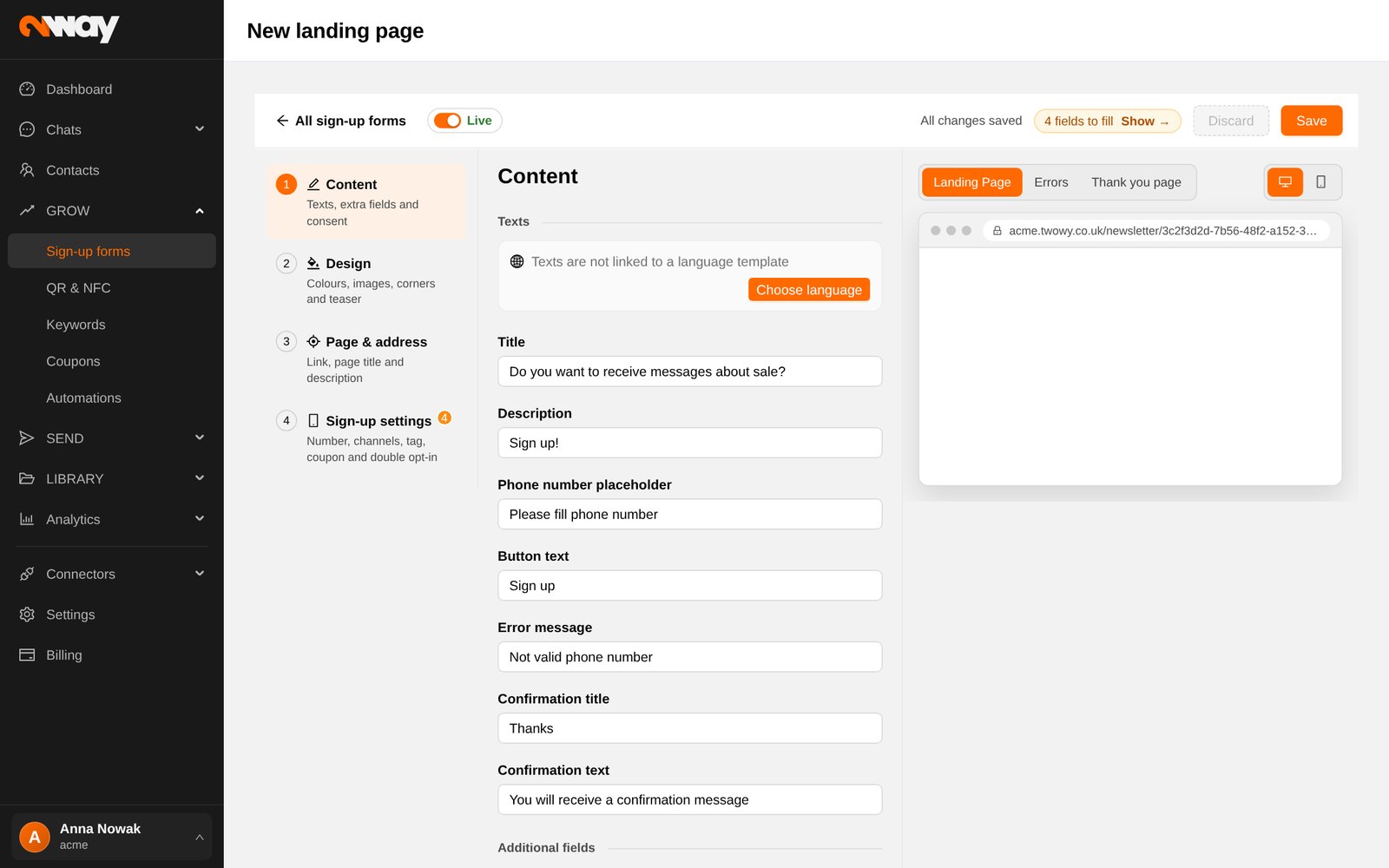
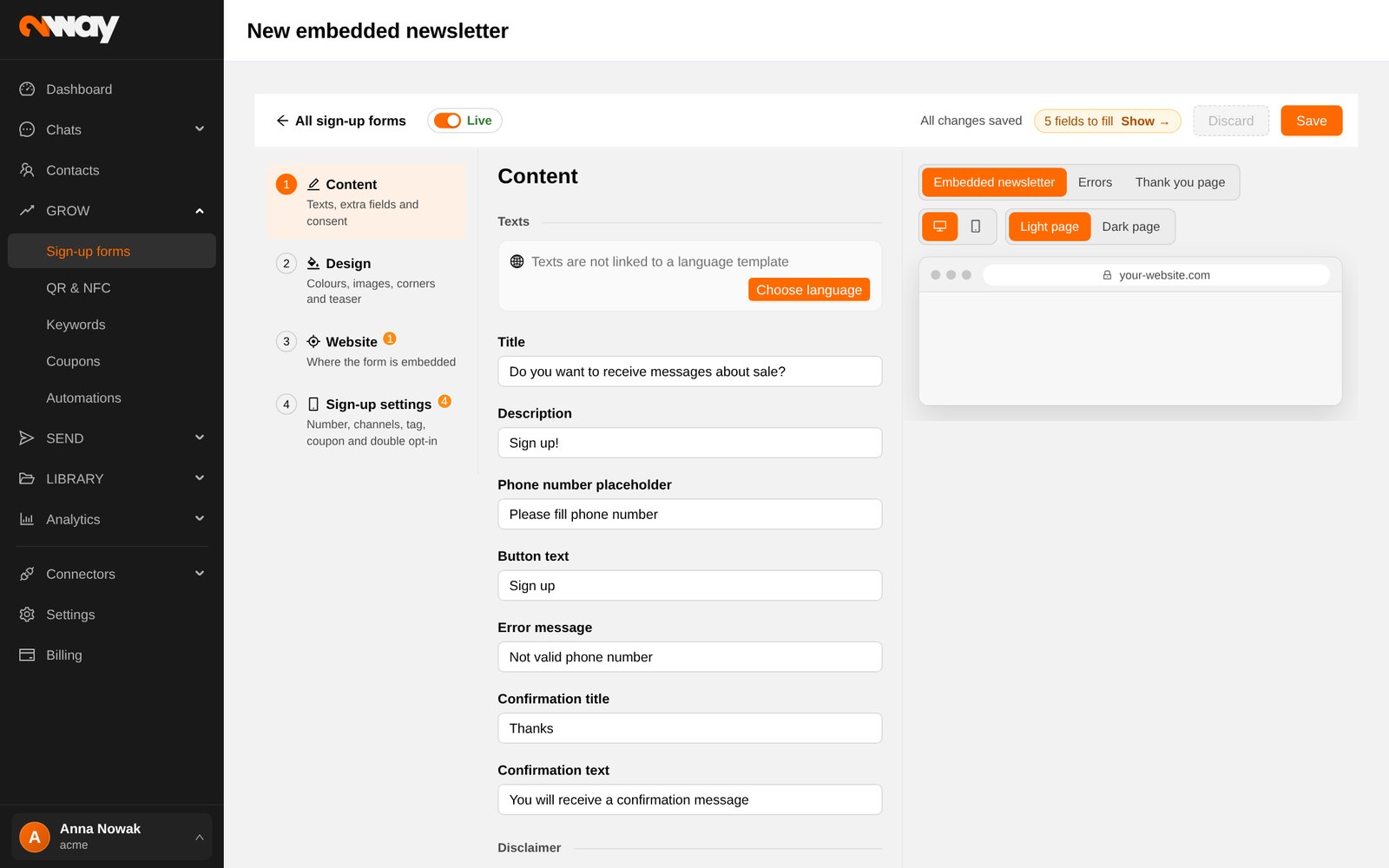
For a landing page this step is Page & address: the link of the page and its title and description for search engines and link previews. For an embedded form it is Website: where the form is placed.
Step 4 · Sign-up settings
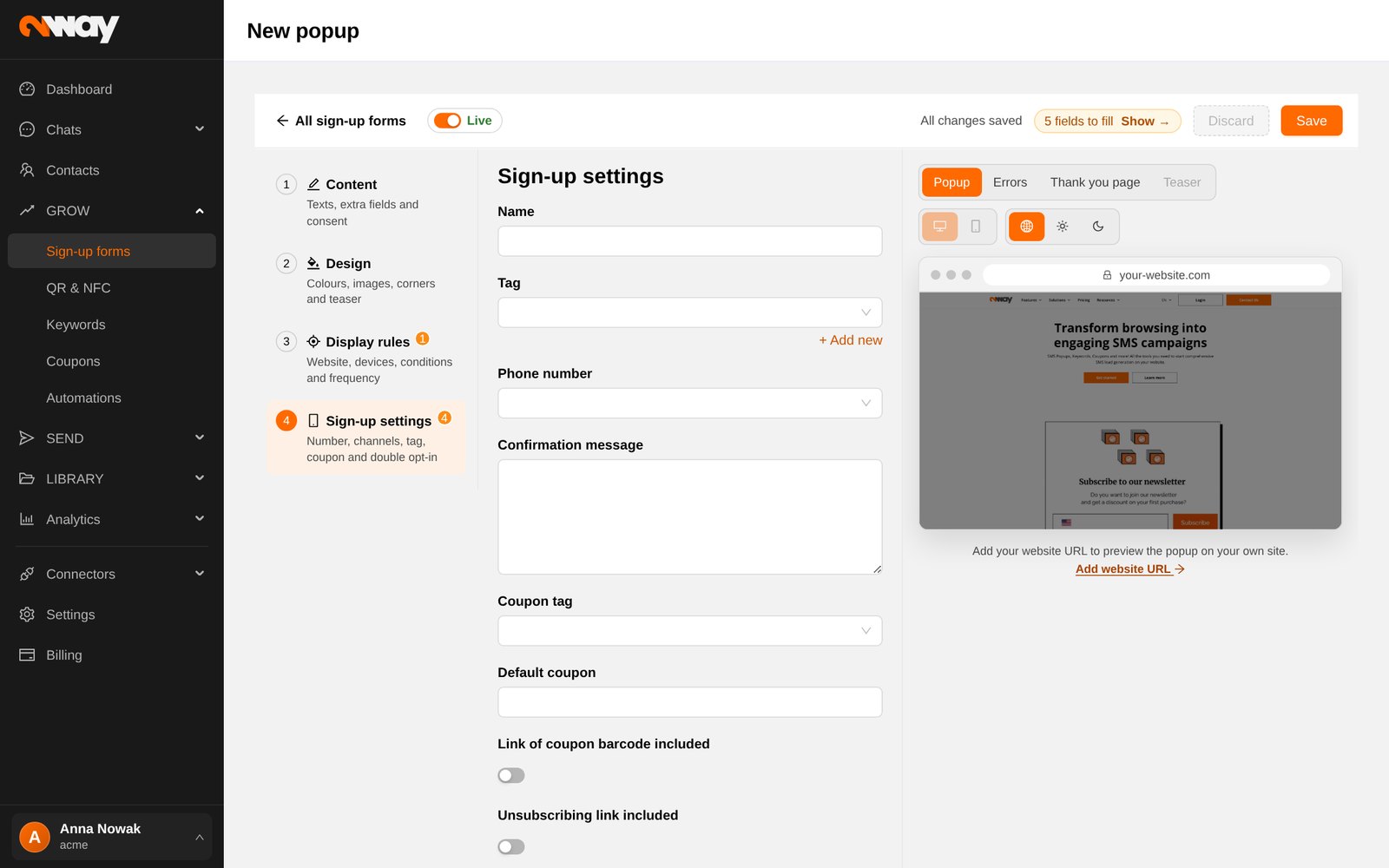
- Tag (required): every contact who signs up through this form gets it. Use tags you will later send to, e.g. autumn-popup or store-warsaw.
- Phone number: the number or sender name the confirmation is sent from. Choose the channels (SMS and/or WhatsApp).
- Confirmation message (required): the SMS the subscriber gets right away. Insert the coupon, the unsubscribe link or your app link.
- Coupon tag and Default coupon: hand out a unique code from your coupon pool to every new subscriber (see Coupons).
- Block multiple sign-ups: the same number cannot sign up twice for the same reward; you can send a polite message instead.
- Double opt-in: the subscriber confirms the number with a one-time code. Your base contains only verified numbers.
- Phone number configuration: force a country code or send from a different number per country.
If your account runs several markets, a fifth step Markets lets you override texts, number, tag and coupon per country.
Going live
- Click Save. The top bar shows “All changes saved” or how many fields still need filling.
- For pop-ups and embedded forms, install the script once on your site: Install on the forms list gives you the code to paste before the </body> tag.
- Turn the switch to Live. For a landing page, share its link or put it behind a QR code.
Landing pages and embedded forms are built the same way:
Reusable texts for forms
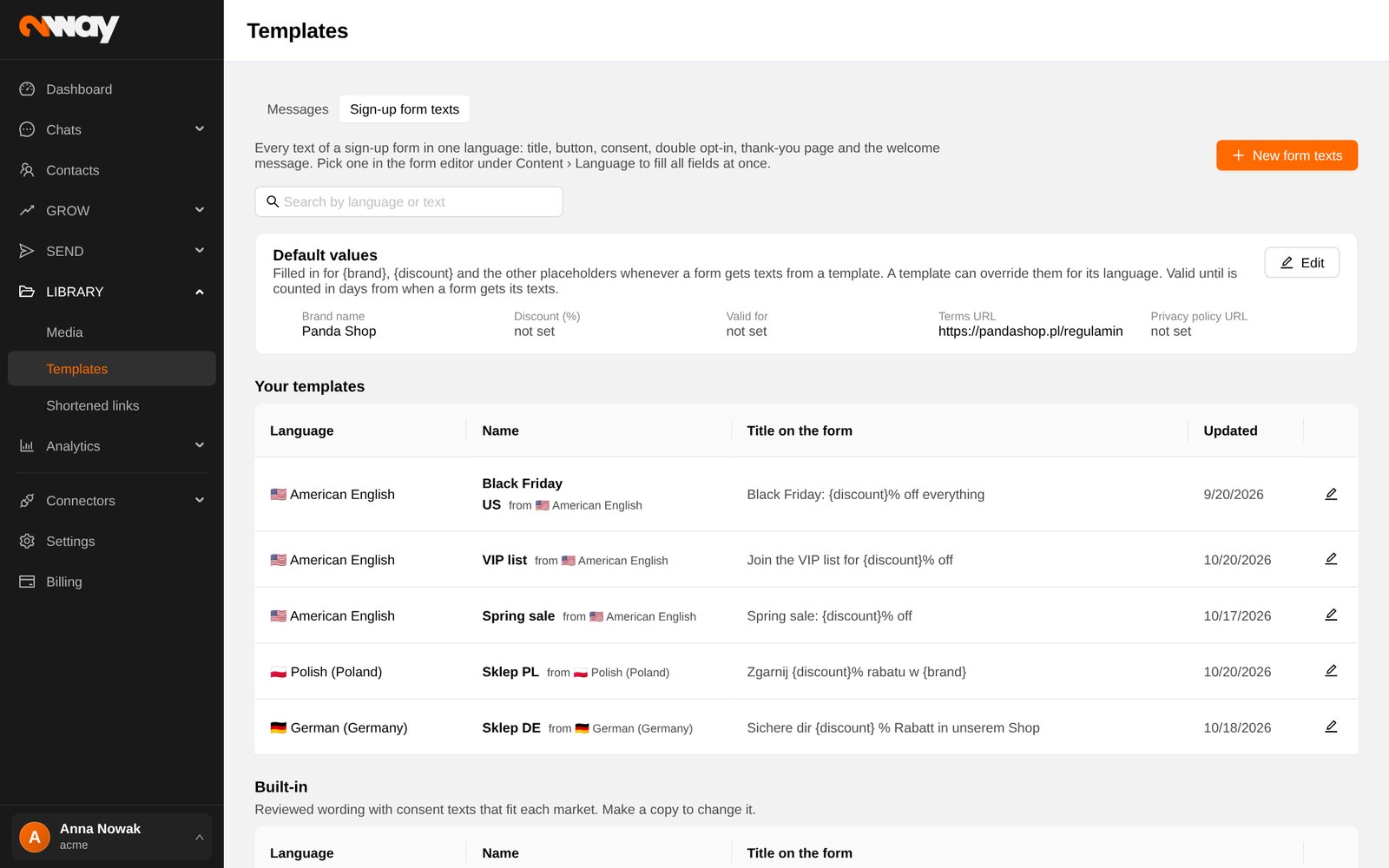
If you run forms in several languages, keep their wording in Sign-up form texts. Start from the built-in 2way set, copy it and fill in your brand name, discount and links once; every new form can then use the set in one click.